
Article Categories
- All Categories
-
 Data Structure
-
 Networking
-
 RDBMS
RDBMS
-
 Operating System
-
 Java
Java
-
 MS Excel
-
 iOS
iOS
-
 HTML
HTML
-
 CSS
CSS
-
 Android
-
 Python
-
 C Programming
-
 C++
C++
-
 C#
C#
-
 MongoDB
-
 MySQL
MySQL
-
 Javascript
-
 PHP
PHP
-
 Economics & Finance
How to retrieve tasks in Task scheduler using PowerShell?
To retrieve the existing tasks in the task scheduler using PowerShell, we can use the PowerShell command Get-ScheduledTask. We can use the Task Scheduler GUI to retrieve the scheduled tasks.
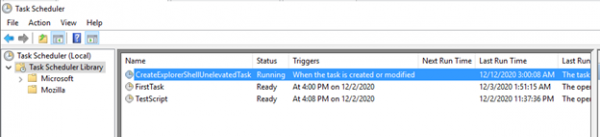
To retrieve using PowerShell, use the Get-ScheduledTask command.
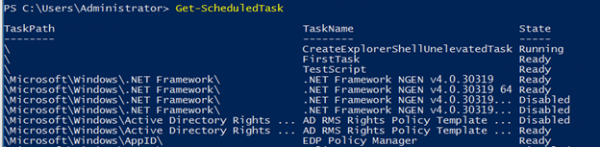
When we use the above command, it retrieves all the tasks from the different paths/folders as well including the root path. To retrieve tasks created at the root path we need to filter the task path,
Get-ScheduledTask | where{$_.TaskPath -eq ""}
If we need to retrieve the specific task then we need to filter the task name,
TaskPath TaskName                          State
-------- --------                          -----
\        CreateExplorerShellUnelevatedTask Running
\        FirstTask                         Ready
\        TestScript                        Ready
To retrieve the specific task,
Get-ScheduledTask | where{$_.TaskName -eq "TestScript"}
Output
TaskPath TaskName   State
-------- --------   -----
\        TestScript Ready
To retrieve the tasks with the state, use the command below,
Get-ScheduledTask | where{$_.State -eq "Running"}
To retrieve the task of the remote computer, we can use the CimSession parameter.
$session = New-CimSession -ComputerName "Test1-Win2k12"
Get-ScheduledTask -CimSession $session | where{$_.TaskPath -eq ""}
To retrieve the tasks located in a specific task folder,
Example
Get-ScheduledTask -CimSession $sess -TaskPath '\DailyReport'
Output:
TaskPath      TaskName       State PSComputerName
--------      --------       ----- --------------
\DailyReport\ DiskInforeport Ready Test1-Win2k12
\DailyReport\ TopProcesses   Ready Test1-Win2k12
In the above example, we have tasks stored in the DailyReport folder.

18K+ Views
