
Article Categories
- All Categories
-
 Data Structure
-
 Networking
-
 RDBMS
RDBMS
-
 Operating System
-
 Java
Java
-
 MS Excel
-
 iOS
iOS
-
 HTML
HTML
-
 CSS
CSS
-
 Android
-
 Python
-
 C Programming
-
 C++
C++
-
 C#
C#
-
 MongoDB
-
 MySQL
MySQL
-
 Javascript
-
 PHP
PHP
-
 Economics & Finance
Selected Reading
How to give dynamic height to UIlabel programmatically in swift?
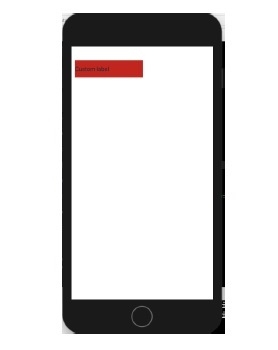
To give a dynamic height to an UIlabel in swift we can use the frame property of UILabel. We can create a frame using the CGRect which allows us to give different variables like x position, y position, width, and height.
Let’s create a label and add it as a subview to our view.
let label = UILabel()
label.frame = CGRect(x: 10, y: 40, width: 200, height: 50)
label.backgroundColor = colorLiteral(red: 0.7450980544, green: 0.1568627506, blue: 0.07450980693, alpha: 1)
label.textColor = colorLiteral(red: 0.05882352963, green: 0.180392161, blue: 0.2470588237, alpha: 1)
label.text = "Custom label"
self.view.addSubview(label)
We can embed this in a function as well, and create an extension too.
func makeLabel(atX x: Double, andY y: Double,width: Double, height: Double) -> UILabel {
   let label = UILabel()
   label.frame = CGRect(x: x, y: y, width: width, height: height)
   label.backgroundColor = colorLiteral(red: 0.7450980544, green: 0.1568627506, blue: 0.07450980693, alpha: 1)
   label.textColor = colorLiteral(red: 0.05882352963, green: 0.180392161, blue: 0.2470588237, alpha: 1)
   label.text = "Custom label"
   return label
}
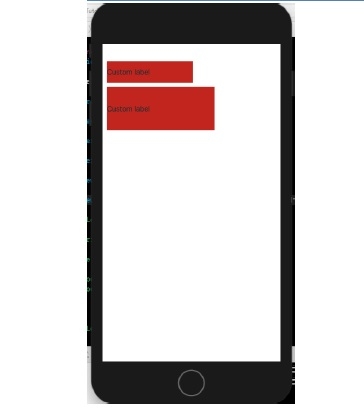
We can use it inside the view controller along with the previous code, and this is how it looks on the device.
self.view.addSubview(makeLabel(atX: 10, andY: 100, width: 250, height: 100))

Updated on: 2019-07-30T22:30:24+05:30
4K+ Views

Advertisements