
Article Categories
- All Categories
-
 Data Structure
-
 Networking
-
 RDBMS
RDBMS
-
 Operating System
-
 Java
Java
-
 MS Excel
-
 iOS
iOS
-
 HTML
HTML
-
 CSS
CSS
-
 Android
-
 Python
-
 C Programming
-
 C++
C++
-
 C#
C#
-
 MongoDB
-
 MySQL
MySQL
-
 Javascript
-
 PHP
PHP
-
 Economics & Finance
Selected Reading
How to get the disk performance using PowerShell?
To get the disk performance using PowerShell, we need to use the Performance counter of the disk. There are performance counters available for the Physical disk or the logical disk. To check what the disks related counter sets are available we can use the below command,
Example
PS C:\> Get-Counter -ListSet "*disk*" | Select CounterSetName
Output
CounterSetName
--------------
FileSystem Disk Activity
Storage Spaces Virtual Disk
LogicalDisk
PhysicalDisk
We will use a Logical disk to get more information about it. We will retrieve its counter first.
Example
Get-Counter -ListSet LogicalDisk | Select -ExpandProperty Counter
Output
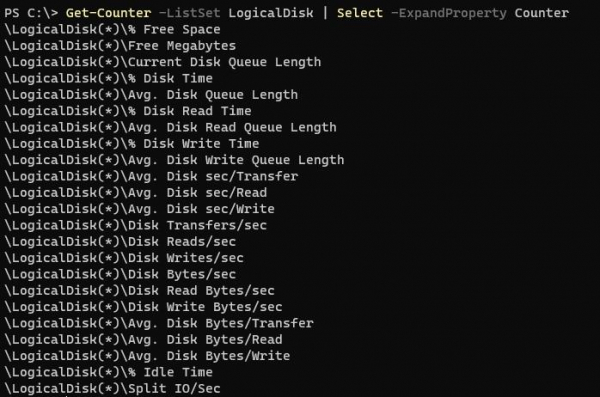
We need to retrieve the Disk read time counter,
Example
Get-Counter -Counter '\LogicalDisk(*)\% Disk Read Time'
Output
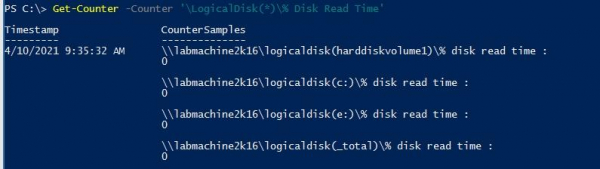
The below command will retrieve the 2 sample counts with 2 sample intervals.
Example
Get-Counter -Counter '\LogicalDisk(*)\% Disk Read Time' -MaxSamples 2 -SampleInterval 2
To get the continuous intervals, use the below command.
Example
Get-Counter -Counter '\LogicalDisk(*)\% Disk Read Time' -Continuous

Updated on: 2021-04-12T11:08:15+05:30
7K+ Views

Advertisements