
Article Categories
- All Categories
-
 Data Structure
-
 Networking
-
 RDBMS
RDBMS
-
 Operating System
-
 Java
Java
-
 MS Excel
-
 iOS
iOS
-
 HTML
HTML
-
 CSS
CSS
-
 Android
-
 Python
-
 C Programming
-
 C++
C++
-
 C#
C#
-
 MongoDB
-
 MySQL
MySQL
-
 Javascript
-
 PHP
PHP
-
 Economics & Finance
How to Create a Message Box Timer to Auto Close the Message Box after Certain Time in Excel
In Excel, message boxes are a terrific method to present users with prompts or essential information, but occasionally it's necessary to shut them automatically after a set amount of time. The process of creating a message box timer using Visual Basic for programmes (VBA), a programming language created primarily for automating operations in Microsoft Office programmes, will be covered in this article. You will clearly grasp how to utilise a timer to automatically close message boxes at the end of this article, enabling you to improve the usability and functionality of your Excel spreadsheets.
This tutorial will give you step-by-step instructions and code samples so you can understand the ideas whether you're a new or expert user of Excel. So let's get started and see how to use VBA in Excel to construct a message box timer!
Create a Message Box Timer to Auto Close the Message Box after Certain Time
Here, we will first create a VBA module and then run it to complete the task. So let us see a simple process to know how you can create a message box timer to automatically close the message box after a certain time in Excel.
Step 1
Consider any Excel sheet.
First, right-click on the sheet name and select View Code to open the VBA application.
Step 2
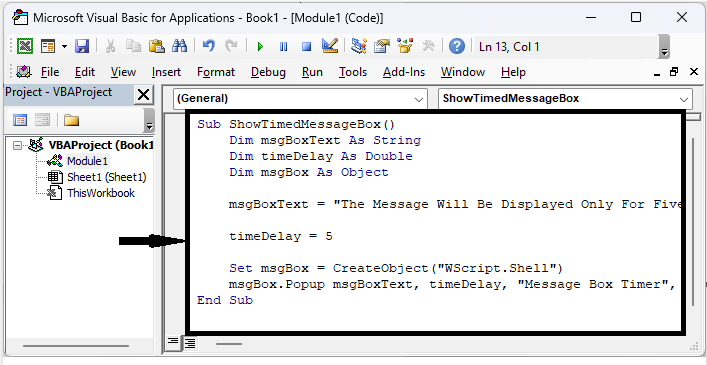
Then click on Insert, select Module, and copy the below code into the text box
Insert > Module > Copy.
Example
Sub ShowTimedMessageBox()
   Dim msgBoxText As String
   Dim timeDelay As Double
   Dim msgBox As Object

   msgBoxText = "The Message Will Be Displayed Only For Five Seconds."

   timeDelay = 5

   Set msgBox = CreateObject("WScript.Shell")
   msgBox.Popup msgBoxText, timeDelay, "Message Box Timer", vbInformation
End Sub
Step 3
Then click F5 to run the module, and the message will be closed automatically after five seconds.
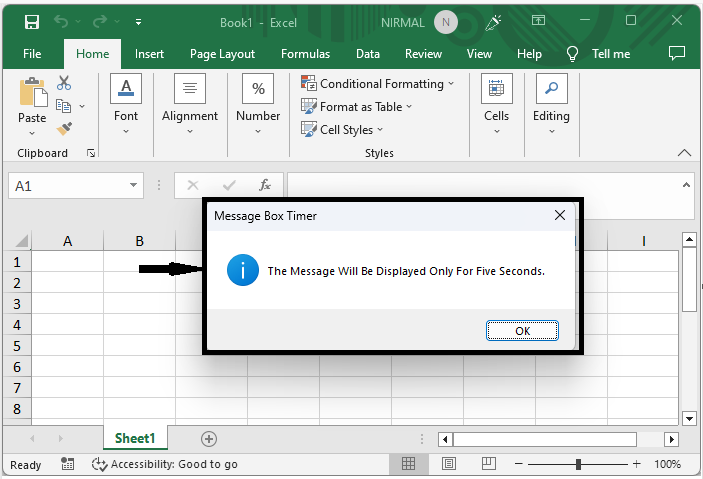
This is how you can create a message box timer to automatically close the message box after a certain time in Excel.
Conclusion
In this tutorial, we have used a simple example to demonstrate how you can create a message box timer to automatically close the message box after a certain time in Excel to highlight a particular set of data.

3K+ Views
