
Article Categories
- All Categories
-
 Data Structure
-
 Networking
-
 RDBMS
RDBMS
-
 Operating System
-
 Java
Java
-
 MS Excel
-
 iOS
iOS
-
 HTML
HTML
-
 CSS
CSS
-
 Android
-
 Python
-
 C Programming
-
 C++
C++
-
 C#
C#
-
 MongoDB
-
 MySQL
MySQL
-
 Javascript
-
 PHP
PHP
-
 Economics & Finance
How to create a Expandable listView using Kotlin?
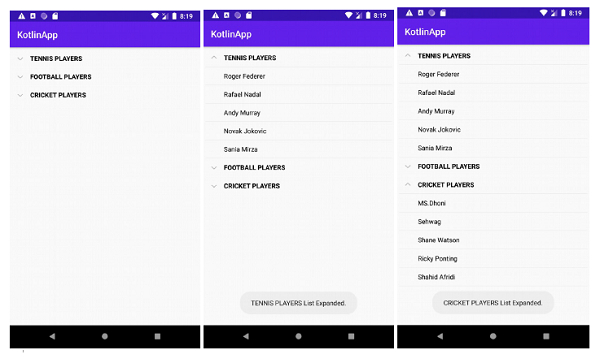
This example demonstrates how to create a Expandable listView using Kotlin.
Step 1 − Create a new project in Android Studio, go to File? New Project and fill all required details to create a new project.
Step 2 − Add the following code to res/layout/activity_main.xml.
Example
<RelativeLayout xmlns:android="http://schemas.android.com/apk/res/android"
xmlns:tools="http://schemas.android.com/tools"
   android:layout_width="match_parent"
   android:layout_height="match_parent"
   android:padding="4dp"
   tools:context=".MainActivity">
   <ExpandableListView
      android:id="@+id/expendableList"
      android:layout_width="match_parent"
      android:layout_height="match_parent"
      android:divider="@android:color/background_light"
      android:dividerHeight="0.5dp" />
</RelativeLayout>
Step 3 − Create a new kotlin class CustomExpandableListAdapter.kt and add the following code −
Example
import android.content.Context
import android.graphics.Typeface
import android.view.LayoutInflater
import android.view.View
import android.view.ViewGroup
import android.widget.BaseExpandableListAdapter
import android.widget.TextView
import java.util.HashMap
class CustomExpandableListAdapter internal constructor(
   private val context: Context,
   private val titleList: List<String>,
   private val dataList: HashMap<String, List<String>>
   ) : BaseExpandableListAdapter() {
      override fun getChild(listPosition: Int, expandedListPosition: Int): Any {
         return this.dataList[this.titleList[listPosition]]!![expandedListPosition]
      }
      override fun getChildId(listPosition: Int, expandedListPosition: Int): Long {
         return expandedListPosition.toLong()
      }
      override fun getChildView(
      listPosition: Int,
      expandedListPosition: Int,
      isLastChild: Boolean,
      convertView: View?,
      parent: ViewGroup
      ): View {
         var convertView = convertView
         val expandedListText = getChild(listPosition, expandedListPosition) as String
         if (convertView == null) {
            val layoutInflater =
            this.context.getSystemService(Context.LAYOUT_INFLATER_SERVICE) as LayoutInflater
            convertView = layoutInflater.inflate(R.layout.list_item, null)
         }
         val expandedListTextView = convertView!!.findViewById<TextView>(R.id.listView)
         expandedListTextView.text = expandedListText
         return convertView
      }
      override fun getChildrenCount(listPosition: Int): Int {
         return this.dataList[this.titleList[listPosition]]!!.size
      }
      override fun getGroup(listPosition: Int): Any {
         return this.titleList[listPosition]
      }
      override fun getGroupCount(): Int {
         return this.titleList.size
      }
      override fun getGroupId(listPosition: Int): Long {
         return listPosition.toLong()
      }
      override fun getGroupView(
      listPosition: Int,
      isExpanded: Boolean,
      convertView: View?,
      parent: ViewGroup
      ): View {
      var convertView = convertView
      val listTitle = getGroup(listPosition) as String
      if (convertView == null) {
         val layoutInflater =
         this.context.getSystemService(Context.LAYOUT_INFLATER_SERVICE) as LayoutInflater
            convertView = layoutInflater.inflate(R.layout.list_item, null)
      }
      val listTitleTextView = convertView!!.findViewById<TextView>(R.id.listView)
      istTitleTextView.setTypeface(null, Typeface.BOLD)
      listTitleTextView.text = listTitle
      return convertView
   }
   override fun hasStableIds(): Boolean {
      return false
   }
   override fun isChildSelectable(listPosition: Int, expandedListPosition: Int): Boolean {
      return true
  }
}
Step 4 − Create a new class ExpandableListData.kt and add the following code −
Example
import java.util.*
internal object ExpandableListData {
   val data: HashMap<String, List<String>>
   get() {
      val expandableListDetail =
      HashMap<String, List<String>>()
      val myFavCricketPlayers: MutableList<String> =
      ArrayList()
      myFavCricketPlayers.add("MS.Dhoni")
      myFavCricketPlayers.add("Sehwag")
      myFavCricketPlayers.add("Shane Watson")
      myFavCricketPlayers.add("Ricky Ponting")
      myFavCricketPlayers.add("Shahid Afridi")
      val myFavFootballPlayers: MutableList<String> = ArrayList()
      myFavFootballPlayers.add("Cristiano Ronaldo")
      myFavFootballPlayers.add("Lionel Messi")
      myFavFootballPlayers.add("Gareth Bale")
      myFavFootballPlayers.add("Neymar JR")
      myFavFootballPlayers.add("David de Gea")
      val myFavTennisPlayers: MutableList<String> = ArrayList()
      myFavTennisPlayers.add("Roger Federer")
      myFavTennisPlayers.add("Rafael Nadal")
      myFavTennisPlayers.add("Andy Murray")
      myFavTennisPlayers.add("Novak Jokovic")
      myFavTennisPlayers.add("Sania Mirza")
      expandableListDetail["CRICKET PLAYERS"] = myFavCricketPlayers
      expandableListDetail["FOOTBALL PLAYERS"] = myFavFootballPlayers
      expandableListDetail["TENNIS PLAYERS"] = myFavTennisPlayers
      return expandableListDetail
   }
}
Step 5 − Add the following code to src/MainActivity.kt
Example
import android.os.Bundle
import android.widget.ExpandableListAdapter
import android.widget.ExpandableListView
import android.widget.Toast
import androidx.appcompat.app.AppCompatActivity
import app.com.q14.ExpandableListData.data
class MainActivity : AppCompatActivity() {
   private var expandableListView: ExpandableListView? = null
   private var adapter: ExpandableListAdapter? = null
   private var titleList: List<String>? = null
   override fun onCreate(savedInstanceState: Bundle?) {
      super.onCreate(savedInstanceState)
      setContentView(R.layout.activity_main)
      title = "KotlinApp"
      expandableListView = findViewById(R.id.expendableList)
      if (expandableListView != null) {
         val listData = data
         titleList = ArrayList(listData.keys)
         adapter = CustomExpandableListAdapter(this, titleList as ArrayList<String>, listData)
         expandableListView!!.setAdapter(adapter)
         expandableListView!!.setOnGroupExpandListener { groupPosition ->
         Toast.makeText(
            applicationContext,
            (titleList as ArrayList<String>)[groupPosition] + " List Expanded.",
            Toast.LENGTH_SHORT
         ).show()
         }
         expandableListView!!.setOnGroupCollapseListener { groupPosition ->
         Toast.makeText(
            applicationContext,
            (titleList as ArrayList<String>)[groupPosition] + " List Collapsed.",
            Toast.LENGTH_SHORT
         ).show()
         }
         expandableListView!!.setOnChildClickListener { _, _, groupPosition, childPosition, _ ->
         Toast.makeText(
         applicationContext,
         "Clicked: " + (titleList as ArrayList<String>)[groupPosition] + " -> " + listData[(
            titleList as
            ArrayList<String>
         )
         [groupPosition]]!!.get(
            childPosition
         ),
         Toast.LENGTH_SHORT
         ).show()
            false
         }
      }
   }
}
Step 6 − Create a new Layout resource (list_item.xml) and add the following code.
Example
<?xml version="1.0" encoding="utf-8"?>
<LinearLayout mlns:android="http://schemas.android.com/apk/res/android"
   android:layout_width="match_parent"
   android:layout_height="match_parent"
   android:orientation="vertical">
   <TextView
      android:id="@+id/listView"
      android:layout_width="match_parent"
      android:layout_height="wrap_content"
      android:paddingStart="?android:attr/expandableListPreferredItemPaddingLeft"
      android:paddingTop="10dp"
      android:paddingBottom="10dp"
      android:textColor="@android:color/black" />
</LinearLayout>
Step 7 − Add the following code to androidManifest.xml
Example
<?xml version="1.0" encoding="utf-8"?>
<manifest xmlns:android="http://schemas.android.com/apk/res/android" package="app.com.q13">
   <application
      android:allowBackup="true"
      android:icon="@mipmap/ic_launcher"
      android:label="@string/app_name"
      android:roundIcon="@mipmap/ic_launcher_round"
      android:supportsRtl="true"
      android:theme="@style/AppTheme">
      <activity android:name=".MainActivity">
         <intent-filter>
            <action android:name="android.intent.action.MAIN" />
            <category android:name="android.intent.category.LAUNCHER" />
         </intent-filter>
      </activity>
   </application>
</manifest>
Let's try to run your application. I assume you have connected your actual Android Mobile device with your computer. To run the app from android studio, open one of your project's activity files and click the Run icon from the toolbar. Select your mobile device as an option and then check your mobile device which will display your default screen

4K+ Views
