
Article Categories
- All Categories
-
 Data Structure
-
 Networking
-
 RDBMS
RDBMS
-
 Operating System
-
 Java
Java
-
 MS Excel
-
 iOS
iOS
-
 HTML
HTML
-
 CSS
CSS
-
 Android
-
 Python
-
 C Programming
-
 C++
C++
-
 C#
C#
-
 MongoDB
-
 MySQL
MySQL
-
 Javascript
-
 PHP
PHP
-
 Economics & Finance
Selected Reading
How to create a Custom Dialog box on iOS App using Swift?
To create a dialog box in swift we’ll make use of UIAlertController which is an important part of UIKit. We’ll do this with help of an iOS application and a sample project.
First of all, we’ll create an empty project, then inside its default view controller, we’ll perform the following operations.
We’ll create an UIAlertController object.
let alert = UIAlertController.init(title: title, message: description, preferredStyle: .alert)
We’ll create an action
let okAction = UIAlertAction.init(title: "Ok", style: .default) { _ in
   print("You tapped ok")
   //custom action here.
}
We’ll add the action to the alert and present it
alert.addAction(okAction)
self.present(alert, animated: true, completion: nil)
Now we’ll convert this to a function −
func createAlert(withTitle title:String,andDescription description: String) {
   let alert = UIAlertController.init(title: title, message: description, preferredStyle: .alert)
   let okAction = UIAlertAction.init(title: "Ok", style: .default) {
       _ in print("You tapped ok")
      //custom action here.
   }
   alert.addAction(okAction)
   self.present(alert, animated: true, completion: nil)
}
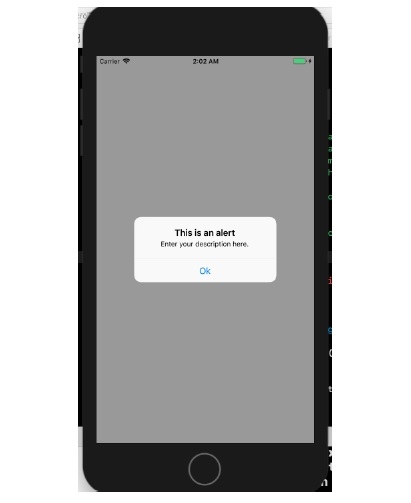
we’ll now call the function in our viewWillLayoutSubviews method, and this is how it looks when we run this on a device.
override func viewWillLayoutSubviews() {
   self.createAlert(withTitle: "This is an alert", andDescription: "Enter your description here.")
}
This produces the result as shown below.

Updated on: 2020-06-30T05:57:47+05:30
1K+ Views

Advertisements