
Article Categories
- All Categories
-
 Data Structure
-
 Networking
-
 RDBMS
RDBMS
-
 Operating System
-
 Java
Java
-
 MS Excel
-
 iOS
iOS
-
 HTML
HTML
-
 CSS
CSS
-
 Android
-
 Python
-
 C Programming
-
 C++
C++
-
 C#
C#
-
 MongoDB
-
 MySQL
MySQL
-
 Javascript
-
 PHP
PHP
-
 Economics & Finance
How to Convert Vector / Single Row or Column to Matrix in Excel?
A matrix is rectangular array with n rows and m columns. Sometimes in excel when we have a data in single column or single row you would want to convert them into a matrix. If you try to solve this manually, then it can be a time-consuming process, as we need to copy each row manually and paste them. So let us see a faster process.
We can solve this using the formulas supported by Excel. The only condition for the matrix is that the all the values must be filled in whole "m*n" values. This tutorial will help you to understand how we can convert vector or single column to matrix in Excel.
Converting a Single Column to Matrix in Excel
Here we will use the formula to get a single value and then fill all the values using the auto-fill handler. Let's look at a simple procedure for converting a single column to a matrix in Excel.
Step 1
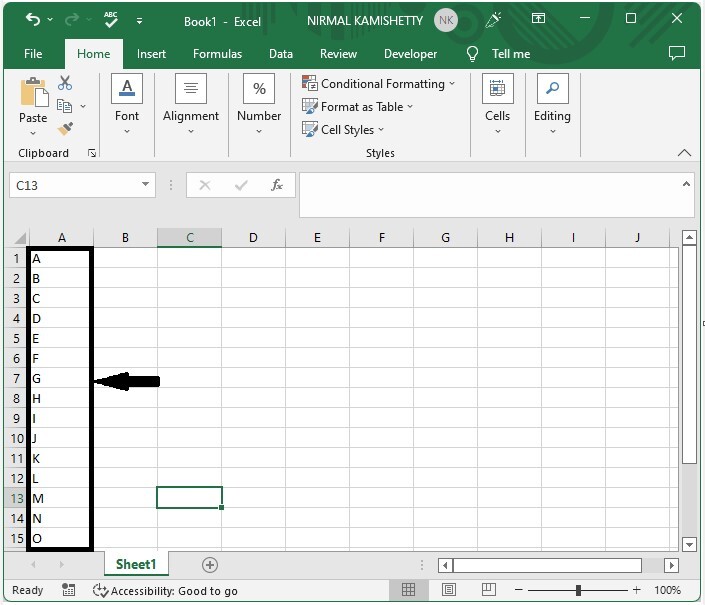
Let us consider an Excel sheet where the data is a list of elements similar to the below image.
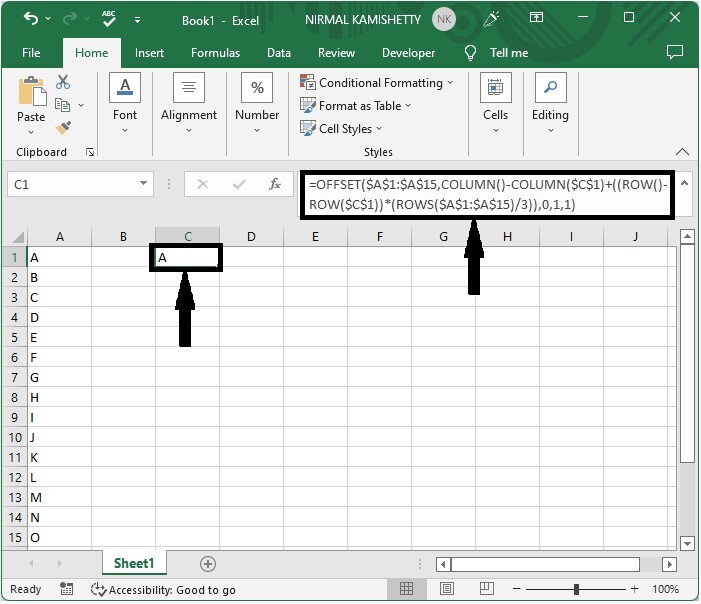
Then, in our case, cell C1, click on an empty cell and enter the formula as follows ?
=OFFSET($A$1:$A$15,COLUMN()-COLUMN($C$1)+((ROW()-ROW($C$1))*(ROWS($A$1:$A$15)/3)),0,1,1)
and click Enter to get our first result. In the formula, A1:A15 is the range of our values, C1 is the address of our current cell, and 3 is the number of rows you want to create in the matrix.
Empty cell > Formula > Enter
Step 2
Now drag in both right and down directions using the auto-fill handle to create a matrix similar to the below image.
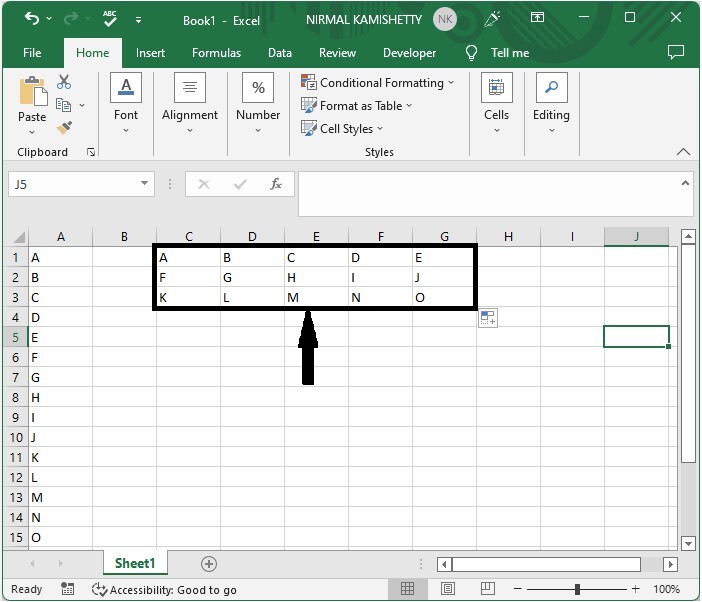
If we want to create a matrix based on a row, we can use the same process, but the only change is that the formula will be changed to
=OFFSET($A$1:$J$1,0,COLUMN()-COLUMN($C$2)+(ROW()-ROW($C$2))*(COLUMNS($A$1:$J$1)/5),1,1).
Conclusion
In this tutorial, we used a simple example to demonstrate how you can convert a single column to a matrix in Excel.

5K+ Views
