
Article Categories
- All Categories
-
 Data Structure
-
 Networking
-
 RDBMS
RDBMS
-
 Operating System
-
 Java
Java
-
 MS Excel
-
 iOS
iOS
-
 HTML
HTML
-
 CSS
CSS
-
 Android
-
 Python
-
 C Programming
-
 C++
C++
-
 C#
C#
-
 MongoDB
-
 MySQL
MySQL
-
 Javascript
-
 PHP
PHP
-
 Economics & Finance
How to Convert Text Strings to Formulas in Excel?
Assume you've saved your formulas as strings in an Excel sheet to be calculated later; if we want to use them, we can because they're stored as strings rather than formulas. It can be very time consuming to manually convert them into formulas. So, we can use a user-defined function to complete our task in a faster way.
Read this tutorial to learn how you can convert text strings to formulas in Excel. We can create the user-defined function using the VBA application. Because this task cannot be completed directly in Excel, we must use a combination of VBA application and formulas.
Converting Text Strings to Formulas in Excel
In this case, first we will open the VB application, then insert a module with code, run it, and use the created eval formula to complete the procedure.
Step 1
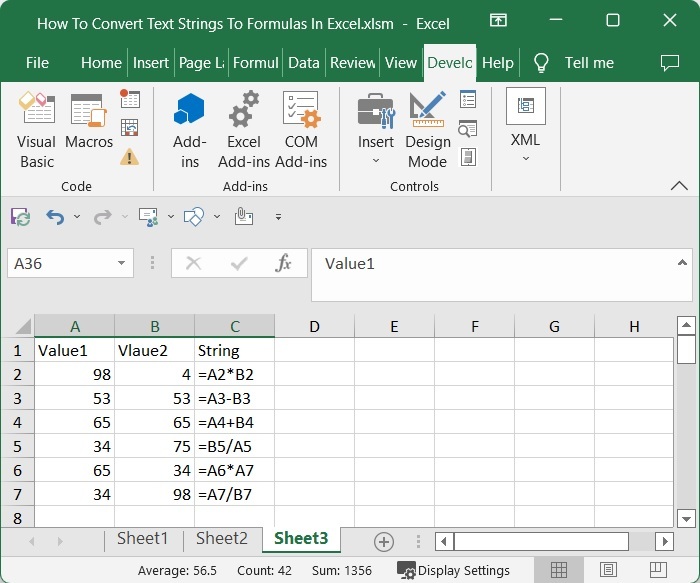
Consider an excel sheet in which the data is in the form of a table with formulas as strings, as shown in the image below.
Now right-click on the sheet name and select View Code to open the VBA application.
Right click > View code
Step 2
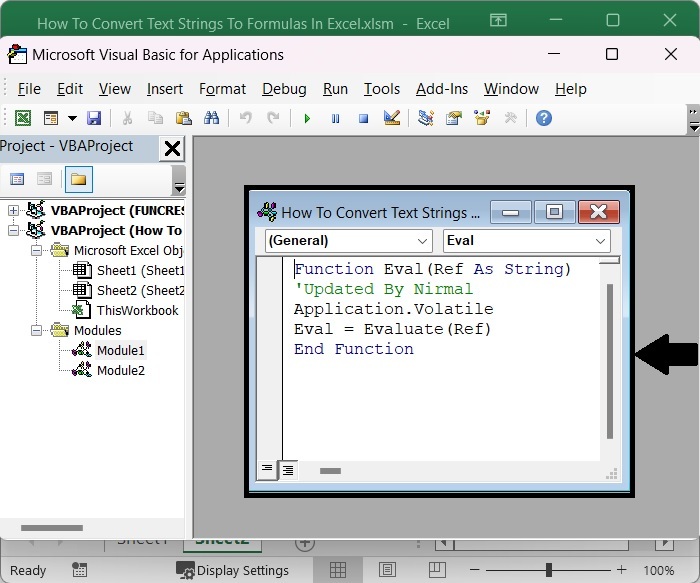
In the VBA application, click on "Insert" and select "Module," then enter the following program code in the text box as shown in the below image.
Insert > Module > Program
Program
Function Eval(Ref As String)
'Updated By Nirmal
Application.Volatile
Eval = Evaluate(Ref)
End Function
Step 3
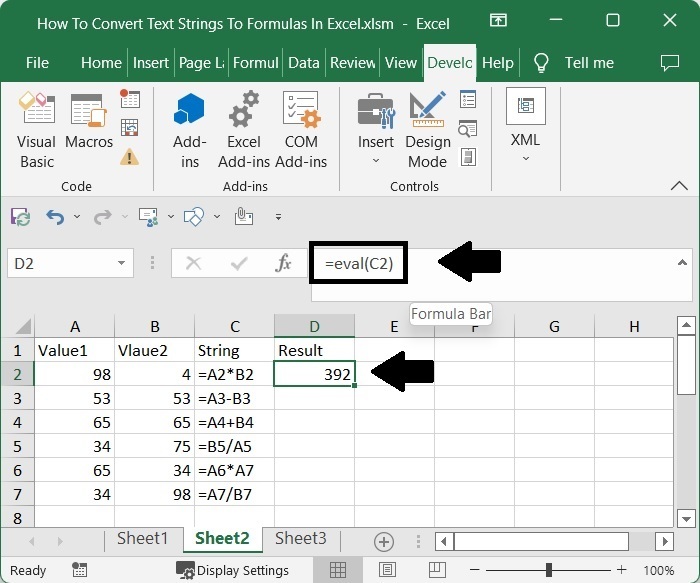
Then, using the Alt + Q command, save the sheet as a macro-enabled workbook and exit the vba application. Then, in our case, cell D2, click on an empty cell, enter the formula =eval(C2), and press enter to get our first result, as shown in the image below. In the formula, C2 is the address of the string on the sheet.
Save > Alt + Q > Empty cell > Enter
Step 4
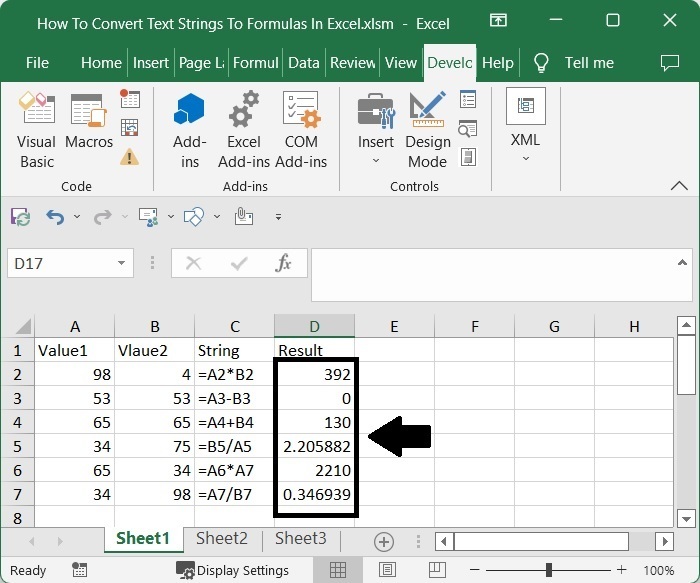
To get all the results, drag down from the first result using the auto-fill handle, and our final result will be similar to the below image.
Conclusion
In this tutorial, we used a simple example to demonstrate how you can convert a text string to a formula in Excel.

15K+ Views
