
Article Categories
- All Categories
-
 Data Structure
-
 Networking
-
 RDBMS
RDBMS
-
 Operating System
-
 Java
Java
-
 MS Excel
-
 iOS
iOS
-
 HTML
HTML
-
 CSS
CSS
-
 Android
-
 Python
-
 C Programming
-
 C++
C++
-
 C#
C#
-
 MongoDB
-
 MySQL
MySQL
-
 Javascript
-
 PHP
PHP
-
 Economics & Finance
How to Automatically Expand the Formula Bar in Excel?
Entering the formula in a formula box is one of the most frequently used processes in Excel. You may have observed that when we enter a formula in the provided box, the formula will always be too small or too large for the formula we are using. This could create problems because sometimes we will not be able to see the whole formula that we are using, and sometimes the space in the formula box will be wasted, reducing our view of the data. We can solve the problem of formula visibility by automatically expanding the formula bar in Excel. This tutorial will help you understand how we can automatically expand the formula bar in Excel.
Automatically Expand the Formula Bar in Excel
Here we will insert VBA code, and then we can see the formula box will be expanded. Let us see a straightforward process for how we can automatically expand the formula bar in Excel with the help of a VBA application.
Step 1
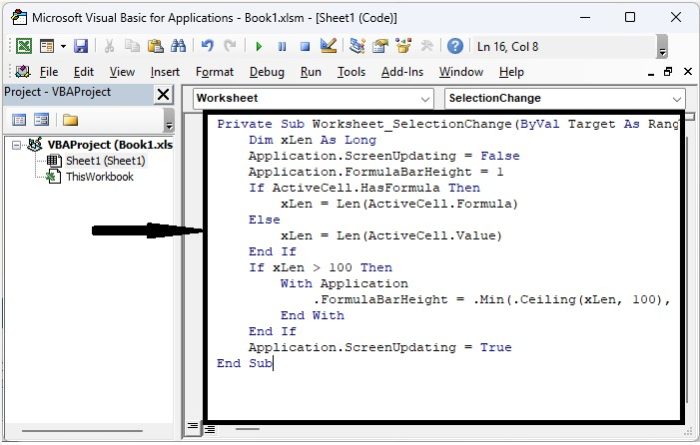
Consider creating a new Excel sheet and right-clicking on the sheet name to open the VBA application, then typing the programme into the textbox as shown in the image below.
Example
<div class="code-mirror  language-javascript" contenteditable="plaintext-only" spellcheck="false" style="outline: none; overflow-wrap: break-word; overflow-y: auto; white-space: pre-wrap;">Private Sub <span class="token function">Worksheet_SelectionChange</span><span class="token punctuation">(</span>ByVal Target As Range<span class="token punctuation">)</span>
   Dim xLen As Long
   Application<span class="token punctuation">.</span>ScreenUpdating <span class="token operator">=</span> False
   Application<span class="token punctuation">.</span>FormulaBarHeight <span class="token operator">=</span> <span class="token number">1</span>
   If ActiveCell<span class="token punctuation">.</span>HasFormula Then
      xLen <span class="token operator">=</span> <span class="token function">Len</span><span class="token punctuation">(</span>ActiveCell<span class="token punctuation">.</span>Formula<span class="token punctuation">)</span>
   Else
      xLen <span class="token operator">=</span> <span class="token function">Len</span><span class="token punctuation">(</span>ActiveCell<span class="token punctuation">.</span>Value<span class="token punctuation">)</span>
   End If
   If xLen <span class="token operator">></span> <span class="token number">100</span> Then
      With Application
         <span class="token punctuation">.</span>FormulaBarHeight <span class="token operator">=</span> <span class="token punctuation">.</span><span class="token function">Min</span><span class="token punctuation">(</span><span class="token punctuation">.</span><span class="token function">Ceiling</span><span class="token punctuation">(</span>xLen<span class="token punctuation">,</span> <span class="token number">100</span><span class="token punctuation">)</span><span class="token punctuation">,</span> <span class="token number">600</span><span class="token punctuation">)</span> <span class="token operator">/</span> <span class="token number">100</span>
      End With
   End If
   Application<span class="token punctuation">.</span>ScreenUpdating <span class="token operator">=</span> True
End Sub
</div>
Step 2
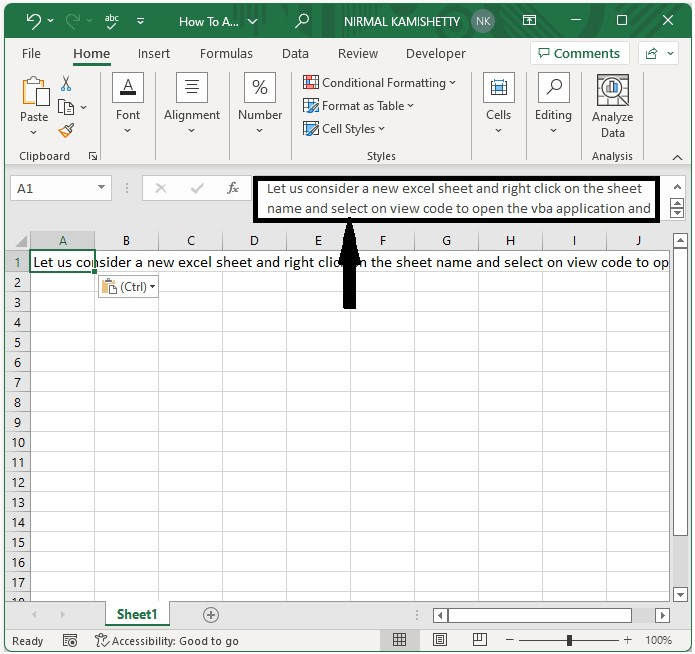
Save the sheet as a macro-enabled template and exit the vba application by pressing "Alt + Q". From now on, if something does not fit in the sheet, the bar will expand automatically, as shown in the below image. The size of the box will always depend on the amount of text we have entered in the formula box.
Conclusion
In this tutorial, we used a simple example to demonstrate how we can automatically expand the formula bar in Excel.

556 Views
