
Article Categories
- All Categories
-
 Data Structure
-
 Networking
-
 RDBMS
RDBMS
-
 Operating System
-
 Java
Java
-
 MS Excel
-
 iOS
iOS
-
 HTML
HTML
-
 CSS
CSS
-
 Android
-
 Python
-
 C Programming
-
 C++
C++
-
 C#
C#
-
 MongoDB
-
 MySQL
MySQL
-
 Javascript
-
 PHP
PHP
-
 Economics & Finance
How to Automatically Enter Date When Data is Entered in a Column in Excel?
Have you considered whether Excel can automatically record the date of the value entered in the sheet? This can be done in Excel by applying this uncomplicated process to the sheet. For example, if you want to list the main events that occurred on a given day, you can directly enter the name of the event and the date will be generated automatically. This can save you a lot of time as there is no need to enter the date every time, and this cannot even completely use the auto-fill handle because the number of values will be unique and random. This tutorial will help you understand how we can automatically enter dates when data is entered in a column.
Automatically Enter Date When Data is Entered in a Column
Here we will insert VBA code for the sheet to complete our task. Let us see a straightforward process to understand how we can automatically enter dates when data is entered in a column. We need to use the help of a VBA application to complete our process; it cannot be done directly in Excel.
Step 1
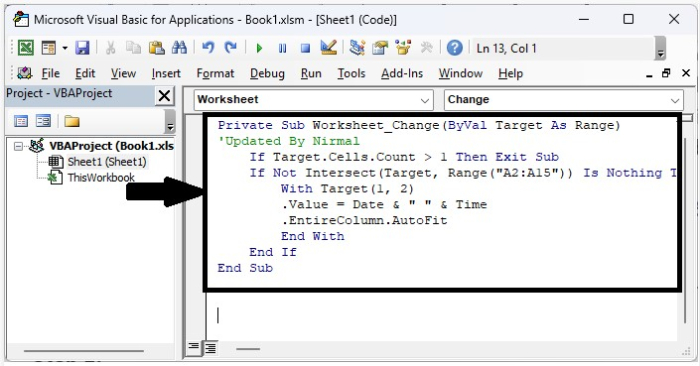
Consider creating a new Excel sheet and right-clicking on the sheet name to open the VB application, then typing the programme into the text box as shown in the image below.
Example
<div class="code-mirror  language-javascript" contenteditable="plaintext-only" spellcheck="false" style="outline: none; overflow-wrap: break-word; overflow-y: auto; white-space: pre-wrap;">Private Sub <span class="token function">Worksheet_Change</span><span class="token punctuation">(</span>ByVal Target As Range<span class="token punctuation">)</span>
'Updated By Nirmal
   If Target<span class="token punctuation">.</span>Cells<span class="token punctuation">.</span>Count <span class="token operator">></span> <span class="token number">1</span> Then Exit Sub
   If Not <span class="token function">Intersect</span><span class="token punctuation">(</span>Target<span class="token punctuation">,</span> <span class="token function">Range</span><span class="token punctuation">(</span><span class="token string">"A2:A15"</span><span class="token punctuation">)</span><span class="token punctuation">)</span> Is Nothing Then
      With <span class="token function">Target</span><span class="token punctuation">(</span><span class="token number">1</span><span class="token punctuation">,</span> <span class="token number">2</span><span class="token punctuation">)</span>
      <span class="token punctuation">.</span>Value <span class="token operator">=</span> Date <span class="token operator">&</span> <span class="token string">" "</span> <span class="token operator">&</span> Time
      <span class="token punctuation">.</span>EntireColumn<span class="token punctuation">.</span>AutoFit
      End With
   End If
End Sub
</div>
Step 2
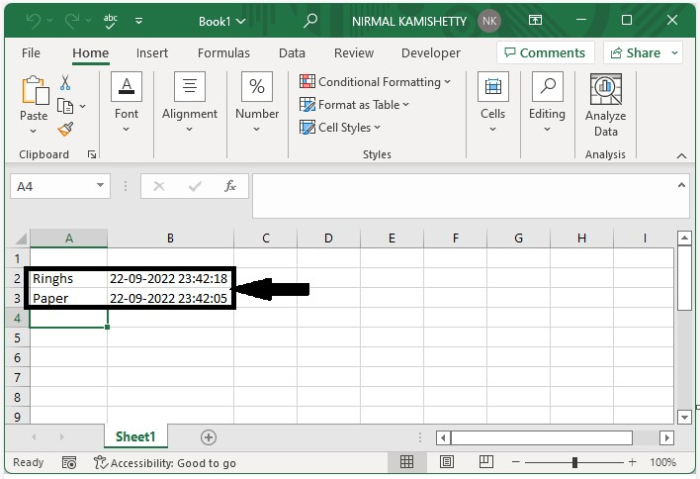
Now save the sheet as a macro-enabled template and close the VBA application using the command "Alt + Q"; then, every time we enter the data in cells of column "A", the date will be shown in column "B".
Conclusion
In this tutorial, we used a simple example to demonstrate how we can automatically enter dates when data is entered in a column in Excel.

1K+ Views
