
Article Categories
- All Categories
-
 Data Structure
-
 Networking
-
 RDBMS
RDBMS
-
 Operating System
-
 Java
Java
-
 MS Excel
-
 iOS
iOS
-
 HTML
HTML
-
 CSS
CSS
-
 Android
-
 Python
-
 C Programming
-
 C++
C++
-
 C#
C#
-
 MongoDB
-
 MySQL
MySQL
-
 Javascript
-
 PHP
PHP
-
 Economics & Finance
How to Automatically Copy a Cell to Clipboard with a Single Click in Excel?
One of the most common tasks in Excel is to copy a cell. To copy a cell, as we all know, use the command CTRL+C or by right-clicking on it and selecting Copy. But when you need to do cell copying more often, it wastes a lot of time. We can create a shortcut for copying the cells using the VB code. The shortcut will be to copy the cell with a single click.
This tutorial will help you understand how we can automatically copy a cell to the clipboard with a single click in Excel.
Automatically Copy a Cell to Clipboard with a Single Click
Here we will insert the VBA code for the sheet, then return to the sheet to complete our task. Let us see a straightforward process to see how we can automatically copy a cell to the clipboard with a single click in Excel.
Step 1
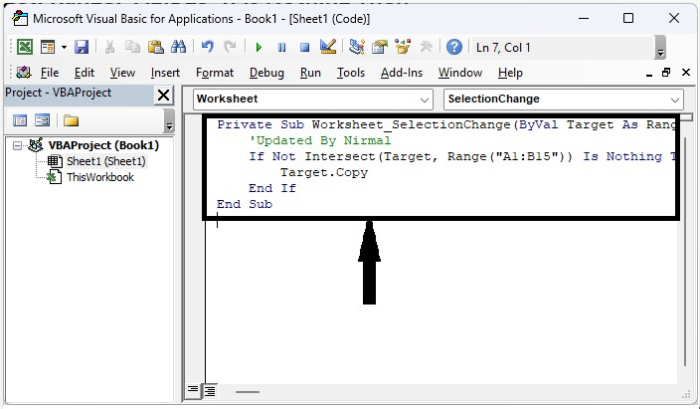
Let us consider a new Excel sheet and use the command "Alt + F11" to open the vba application, then type the below-mentioned programme into the text box as shown in the below image.
Example
<div class="code-mirror  language-javascript" contenteditable="plaintext-only" spellcheck="false" style="outline: none; overflow-wrap: break-word; overflow-y: auto; white-space: pre-wrap;">Private Sub <span class="token function">Worksheet_SelectionChange</span><span class="token punctuation">(</span>ByVal Target As Range<span class="token punctuation">)</span>
   'Updated By Nirmal
   If Not <span class="token function">Intersect</span><span class="token punctuation">(</span>Target<span class="token punctuation">,</span> <span class="token function">Range</span><span class="token punctuation">(</span><span class="token string">"A1:B15"</span><span class="token punctuation">)</span><span class="token punctuation">)</span> Is Nothing Then
      Target<span class="token punctuation">.</span>Copy
   End If
End Sub
</div>
In the code, the range A1:B15 is the range of cells where our code will work. We can use this code to copy one cell or multiple cells at once.
Step 2
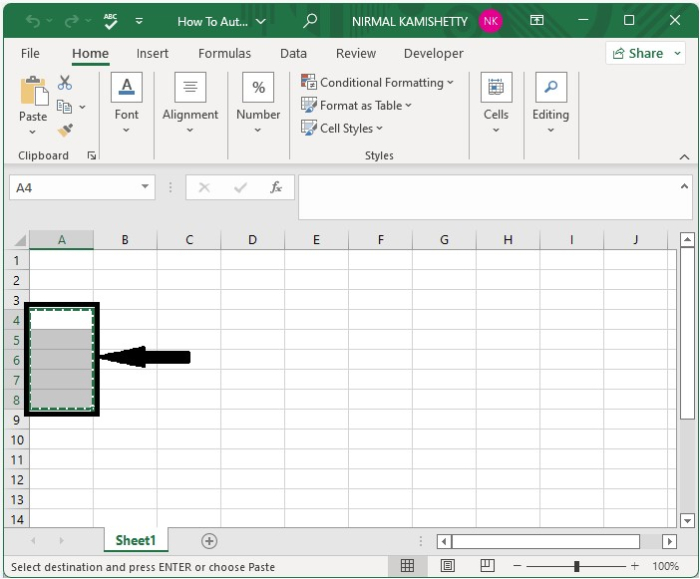
Now save the workbook as a macro-enabled workbook and close the vba application using the command "Alt + Q". From now on, every time we click on a cell that is mentioned in the range of code, the data in that cell will be copied automatically. When we select any cell in the range, then it will be copied automatically.
Conclusion
In this tutorial, we used a simple example to demonstrate how we can automatically copy a cell to the clipboard with a single click in Excel.

6K+ Views
