
Article Categories
- All Categories
-
 Data Structure
-
 Networking
-
 RDBMS
RDBMS
-
 Operating System
-
 Java
Java
-
 MS Excel
-
 iOS
iOS
-
 HTML
HTML
-
 CSS
CSS
-
 Android
-
 Python
-
 C Programming
-
 C++
C++
-
 C#
C#
-
 MongoDB
-
 MySQL
MySQL
-
 Javascript
-
 PHP
PHP
-
 Economics & Finance
How to Auto-Populate Date in a Cell when its Adjacent Cell is Updated in Excel?
Let us assume we have a situation where we want to know the date of the last update of a value in a list, and you want to record the date of the last update. This process can be done using the VBA application, as it cannot be completed directly with formulas. Read this tutorial to learn how you can populate date in a cell when its adjusting cell is updated in Excel.
AutoPopulate Date in a Cell when its Adjacent Cell is Updated
Here we will insert VBA code into the sheet to complete the task. Let us see a simple process to understand how we can auto-populate dates in cells when adjusting cells in Excel using the VBA code.
Step 1
Let us consider that we have a list of names similar to the data shown in the below image.

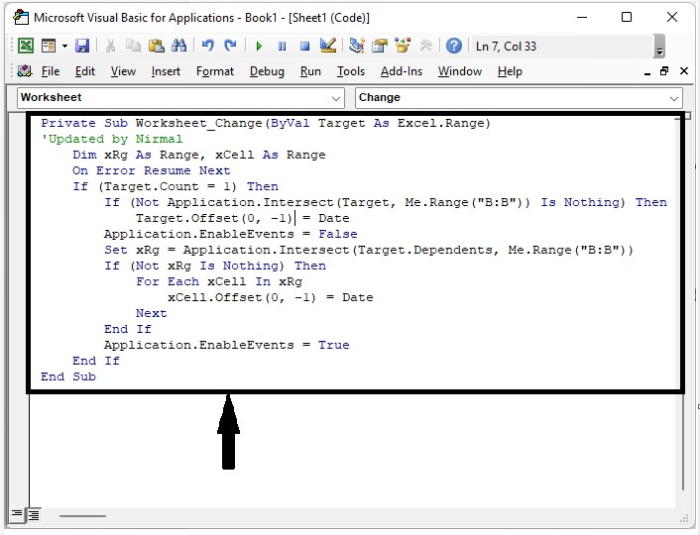
Now to open the VBA application, right-click on the sheet name and select view code, then click on insert, and then type the programme into the textbox as shown in the below image.
Example
<div class="code-mirror  language-javascript" contenteditable="plaintext-only" spellcheck="false" style="outline: none; overflow-wrap: break-word; overflow-y: auto; white-space: pre-wrap;">Private Sub <span class="token function">Worksheet_Change</span><span class="token punctuation">(</span>ByVal Target As Excel<span class="token punctuation">.</span>Range<span class="token punctuation">)</span>
'Updated by Nirmal
   Dim xRg As Range<span class="token punctuation">,</span> xCell As Range
   On Error Resume Next
   <span class="token function">If</span> <span class="token punctuation">(</span>Target<span class="token punctuation">.</span>Count <span class="token operator">=</span> <span class="token number">1</span><span class="token punctuation">)</span> Then
      <span class="token function">If</span> <span class="token punctuation">(</span>Not Application<span class="token punctuation">.</span><span class="token function">Intersect</span><span class="token punctuation">(</span>Target<span class="token punctuation">,</span> Me<span class="token punctuation">.</span><span class="token function">Range</span><span class="token punctuation">(</span><span class="token string">"B:B"</span><span class="token punctuation">)</span><span class="token punctuation">)</span> Is Nothing<span class="token punctuation">)</span> Then _
         Target<span class="token punctuation">.</span><span class="token function">Offset</span><span class="token punctuation">(</span><span class="token number">0</span><span class="token punctuation">,</span> <span class="token operator">-</span><span class="token number">1</span><span class="token punctuation">)</span> <span class="token operator">=</span> Date
      Application<span class="token punctuation">.</span>EnableEvents <span class="token operator">=</span> False
      Set xRg <span class="token operator">=</span> Application<span class="token punctuation">.</span><span class="token function">Intersect</span><span class="token punctuation">(</span>Target<span class="token punctuation">.</span>Dependents<span class="token punctuation">,</span> Me<span class="token punctuation">.</span><span class="token function">Range</span><span class="token punctuation">(</span><span class="token string">"B:B"</span><span class="token punctuation">)</span><span class="token punctuation">)</span>
      <span class="token function">If</span> <span class="token punctuation">(</span>Not xRg Is Nothing<span class="token punctuation">)</span> Then
         For Each xCell In xRg
            xCell<span class="token punctuation">.</span><span class="token function">Offset</span><span class="token punctuation">(</span><span class="token number">0</span><span class="token punctuation">,</span> <span class="token operator">-</span><span class="token number">1</span><span class="token punctuation">)</span> <span class="token operator">=</span> Date
         Next
      End If
      Application<span class="token punctuation">.</span>EnableEvents <span class="token operator">=</span> True
   End If
End Sub
</div>
In the code, "B:B" represents the data in cell "B", and "-1" describes the update date in the cell to its left; if we change it to "1", the date will be displayed in cell "C".
Step 2
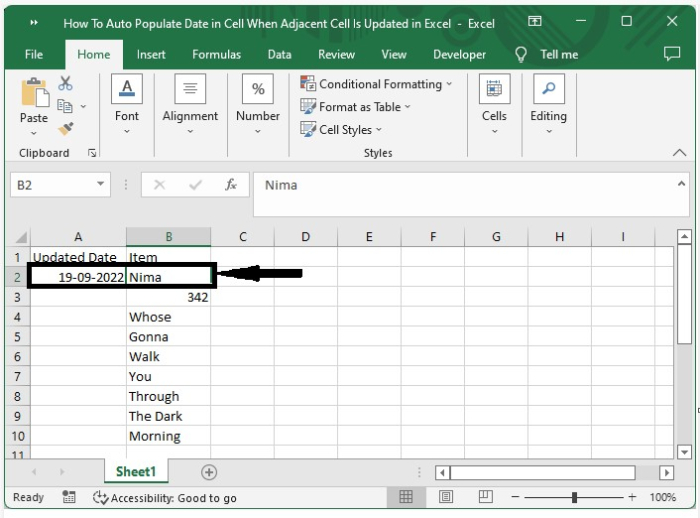
Now save the workbook as a VBA enabled template, then close the VB application with the command Alt + Q, and the date will be auto-inserted in cell A whenever we update the value in cell B, as shown in the image below.
Conclusion
In this tutorial, we used a simple example to demonstrate how we can auto-populate dates in cells when their adjacent cells are updated in Excel.

1K+ Views
