
Article Categories
- All Categories
-
 Data Structure
-
 Networking
-
 RDBMS
RDBMS
-
 Operating System
-
 Java
Java
-
 MS Excel
-
 iOS
iOS
-
 HTML
HTML
-
 CSS
CSS
-
 Android
-
 Python
-
 C Programming
-
 C++
C++
-
 C#
C#
-
 MongoDB
-
 MySQL
MySQL
-
 Javascript
-
 PHP
PHP
-
 Economics & Finance
How to Auto-Number Merged Cells in Excel?
When we try to insert a sequence number into an item in Excel, we always use the autofill handle, but when we try to apply the same process to cells of different sizes, the error appears. This process can?t be completed using the default functions in Excel; instead, we will be using the VBA application to complete our process.
Read this tutorial to learn how you can autonumber merged cells in Excel.
AutoNumber Merged Cells in Excel
Here, we will first insert a VBA module and then run the module to complete our task. Let us see a simple process to understand how we can auto-number merged cells in Excel.
Step 1
Let us consider an Excel sheet that contains a list of different heights, and then try to apply the sequence number using the autofill handle.
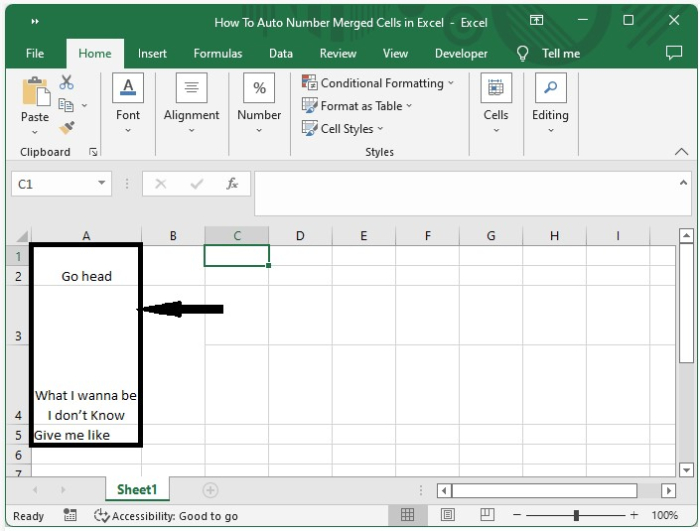
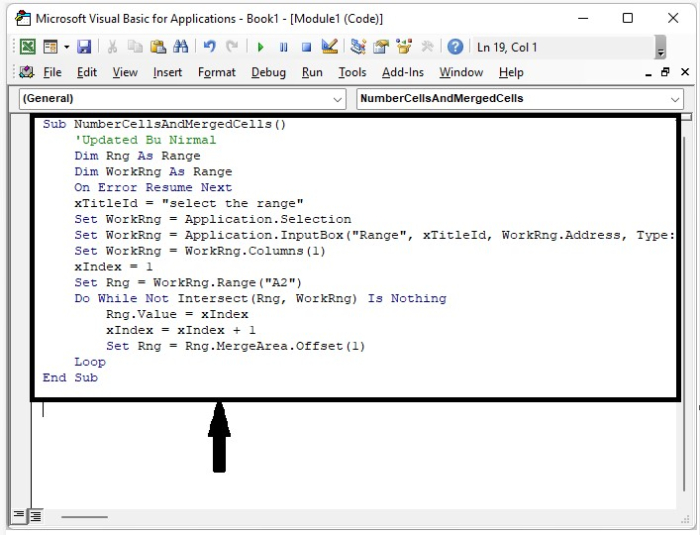
We can see that the result is not accurate, but we can use VBA code to get the perfect result. Now right-click on the sheet name and select view code to open the vba application, and click on inset and select module, then type the programme into the text box as shown in the below image.
Example
<div class="code-mirror  language-javascript" contenteditable="plaintext-only" spellcheck="false" style="outline: none; overflow-wrap: break-word; overflow-y: auto; white-space: pre-wrap;">Sub <span class="token function">NumberCellsAndMergedCells</span><span class="token punctuation">(</span><span class="token punctuation">)</span>
   'Updated Bu Nirmal
   Dim Rng As Range
   Dim WorkRng As Range
   On Error Resume Next
   xTitleId <span class="token operator">=</span> <span class="token string">"select the range"</span>
   Set WorkRng <span class="token operator">=</span> Application<span class="token punctuation">.</span>Selection
   Set WorkRng <span class="token operator">=</span> Application<span class="token punctuation">.</span><span class="token function">InputBox</span><span class="token punctuation">(</span><span class="token string">"Range"</span><span class="token punctuation">,</span> xTitleId<span class="token punctuation">,</span> WorkRng<span class="token punctuation">.</span>Address<span class="token punctuation">,</span> Type<span class="token operator">:</span><span class="token operator">=</span><span class="token number">8</span><span class="token punctuation">)</span>
   Set WorkRng <span class="token operator">=</span> WorkRng<span class="token punctuation">.</span><span class="token function">Columns</span><span class="token punctuation">(</span><span class="token number">1</span><span class="token punctuation">)</span>
   xIndex <span class="token operator">=</span> <span class="token number">1</span>
   Set Rng <span class="token operator">=</span> WorkRng<span class="token punctuation">.</span><span class="token function">Range</span><span class="token punctuation">(</span><span class="token string">"A2"</span><span class="token punctuation">)</span>
   Do While Not <span class="token function">Intersect</span><span class="token punctuation">(</span>Rng<span class="token punctuation">,</span> WorkRng<span class="token punctuation">)</span> Is Nothing
      Rng<span class="token punctuation">.</span>Value <span class="token operator">=</span> xIndex
      xIndex <span class="token operator">=</span> xIndex <span class="token operator">+</span> <span class="token number">1</span>
      Set Rng <span class="token operator">=</span> Rng<span class="token punctuation">.</span>MergeArea<span class="token punctuation">.</span><span class="token function">Offset</span><span class="token punctuation">(</span><span class="token number">1</span><span class="token punctuation">)</span>
   Loop
End Sub
</div>
Step 2
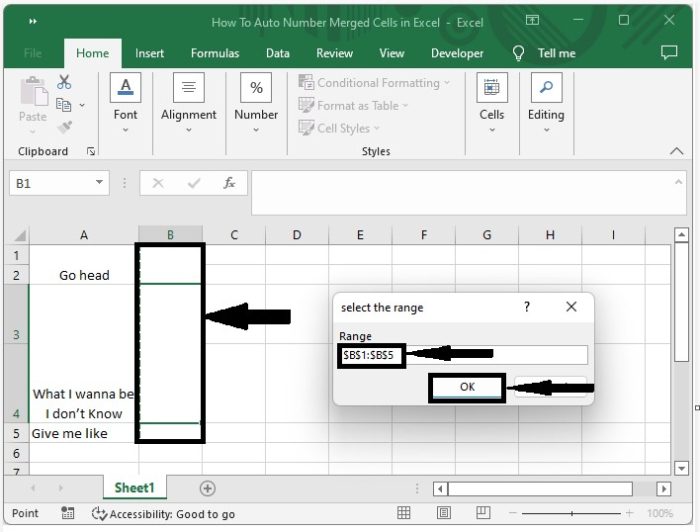
Now save the workbook as a macro-enabled template and press F5 to run the code. A pop-up window titled "Select the Range" will appear; select the range of cells to number as shown in the image below.
Step 3
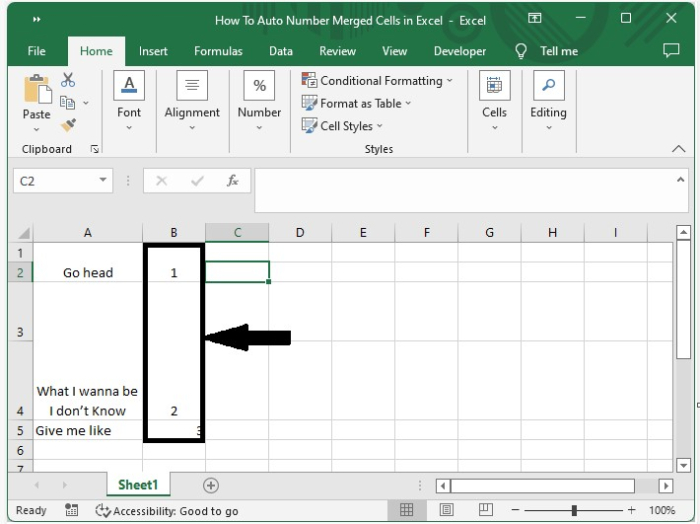
Now click on OK to get our final output, as shown in the below image.
Conclusion
In this tutorial, we used a simple example to demonstrate how we can auto-number merged cells in Excel to highlight a particular set of data.

4K+ Views
