
Article Categories
- All Categories
-
 Data Structure
-
 Networking
-
 RDBMS
RDBMS
-
 Operating System
-
 Java
Java
-
 MS Excel
-
 iOS
iOS
-
 HTML
HTML
-
 CSS
CSS
-
 Android
-
 Python
-
 C Programming
-
 C++
C++
-
 C#
C#
-
 MongoDB
-
 MySQL
MySQL
-
 Javascript
-
 PHP
PHP
-
 Economics & Finance
How to Auto-Highlight the Row and Column of an Active Cell in Excel?
When we have a large amount of data on a single visible sheet, we can have the problem of straining our eyes to see the selected value clearly, which leads to a value misreading. But we can solve this problem by highlighting the row and column of active cells with different colours. This tutorial will help you understand how we can automatically highlight rows and columns of active cells in Excel.
Auto-Highlight Row and Column of an Active Cell
Here we will insert VBA code for the sheet, and then every time we select a cell, the row and column will be highlighted. Let us see a simple process to understand how we can auto-highlight rows and columns if there is an active cell in Excel using the vba application.
Step 1
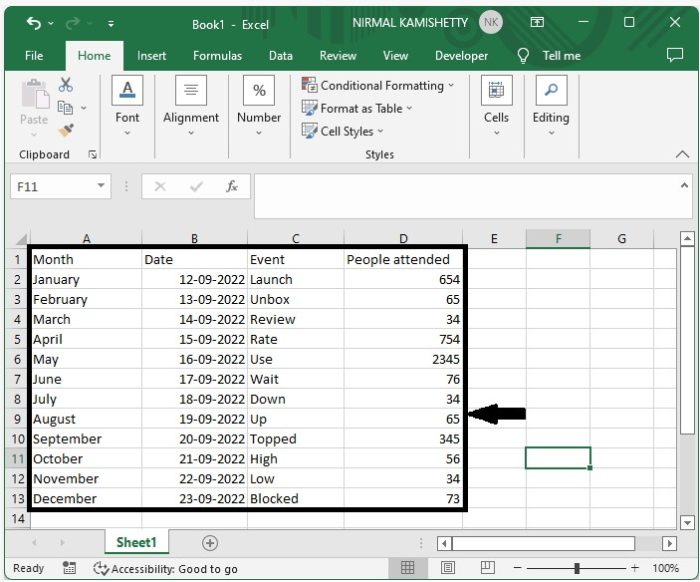
Consider the following scenario ? we have an excel sheet with data that is similar to the data shown in the image below.
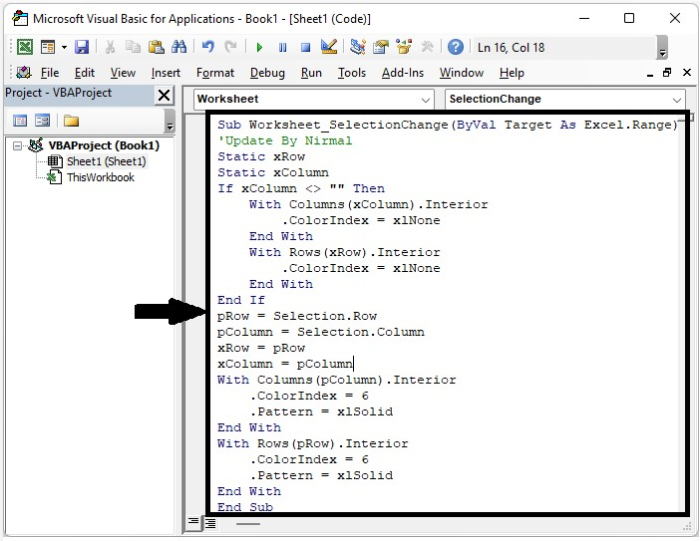
Now, right-click on the sheet name and select "View Code" to open the VBA application, and type the programme into the sheet as shown in the below image.
Example
<div class="code-mirror  language-javascript" contenteditable="plaintext-only" spellcheck="false" style="outline: none; overflow-wrap: break-word; overflow-y: auto; white-space: pre-wrap;">Sub <span class="token function">Worksheet_SelectionChange</span><span class="token punctuation">(</span>ByVal Target As Excel<span class="token punctuation">.</span>Range<span class="token punctuation">)</span>
'Update By Nirmal
Static xRow
Static xColumn
If xColumn <span class="token operator"><</span><span class="token operator">></span> <span class="token string">""</span> Then
   With <span class="token function">Columns</span><span class="token punctuation">(</span>xColumn<span class="token punctuation">)</span><span class="token punctuation">.</span>Interior
      <span class="token punctuation">.</span>ColorIndex <span class="token operator">=</span> xlNone
   End With
   With <span class="token function">Rows</span><span class="token punctuation">(</span>xRow<span class="token punctuation">)</span><span class="token punctuation">.</span>Interior
      <span class="token punctuation">.</span>ColorIndex <span class="token operator">=</span> xlNone
   End With
End If
pRow <span class="token operator">=</span> Selection<span class="token punctuation">.</span>Row
pColumn <span class="token operator">=</span> Selection<span class="token punctuation">.</span>Column
xRow <span class="token operator">=</span> pRow
xColumn <span class="token operator">=</span> pColumn
With <span class="token function">Columns</span><span class="token punctuation">(</span>pColumn<span class="token punctuation">)</span><span class="token punctuation">.</span>Interior
   <span class="token punctuation">.</span>ColorIndex <span class="token operator">=</span> <span class="token number">6</span>
   <span class="token punctuation">.</span>Pattern <span class="token operator">=</span> xlSolid
End With
With <span class="token function">Rows</span><span class="token punctuation">(</span>pRow<span class="token punctuation">)</span><span class="token punctuation">.</span>Interior
   <span class="token punctuation">.</span>ColorIndex <span class="token operator">=</span> <span class="token number">6</span>
   <span class="token punctuation">.</span>Pattern <span class="token operator">=</span> xlSolid
End With
End Sub
</div>
In the code, the colour code is represented by Colorindex = 6.
Step 2
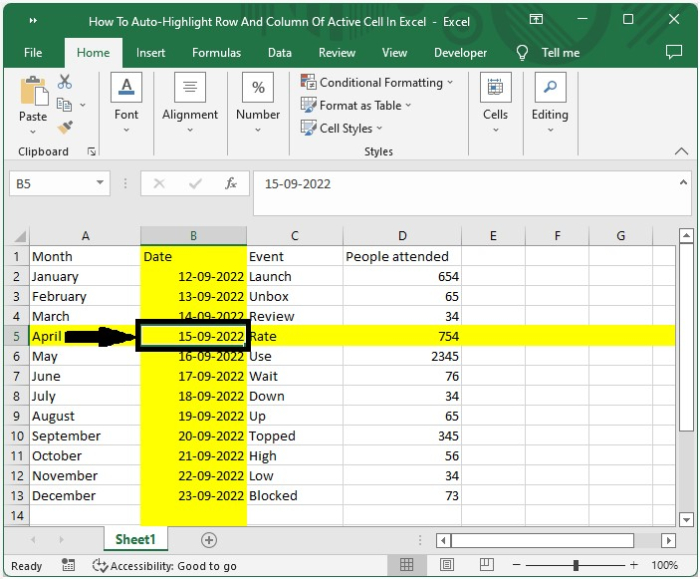
Now save the sheet as a macro-enabled sheet and close the VBA application by pressing "Alt + Q". Every time we click on a cell in Excel, the row and column of the cell will be highlighted, as shown in the below image.
Conclusion
In this tutorial, we used a simple example to demonstrate how we can auto-highlight rows and columns if an active cell in Excel is selected.

1K+ Views
