
Article Categories
- All Categories
-
 Data Structure
-
 Networking
-
 RDBMS
RDBMS
-
 Operating System
-
 Java
Java
-
 MS Excel
-
 iOS
iOS
-
 HTML
HTML
-
 CSS
CSS
-
 Android
-
 Python
-
 C Programming
-
 C++
C++
-
 C#
C#
-
 MongoDB
-
 MySQL
MySQL
-
 Javascript
-
 PHP
PHP
-
 Economics & Finance
How can we set the shortcut key to a JButton in Java?
In this article, we will learn to set the shortcut key to a JButton in Java. In Swing-based applications, we can implement the addition of keyboard shortcuts to buttons to enable quicker navigation by the user.
What is a JButton?
A JButton is a subclass of AbstractButton, and it can be used to add platform-independent buttons to a Java Swing application. When the button is pressed or clicked, a JButton can generate an ActionListener interface; it can also generate the MouseListener and KeyListener interfaces.
Setting the Shortcut Key for JButton
We can also set the shortcut keys for a JButton using the setMnemonic() method. The following is the step-by-step process to set the shortcut key to a JButton in Java:
Class Declaration and Imports
The javax.swing.* provides Swing components (JFrame, JButton, etc.) while the java.awt.* provides AWT classes (Color, layout managers), and the class extends JFrame to create a window.
import java.awt.*;
import java.awt.event.*;
import javax.swing.*;
public class JButtonTest extends JFrame {
Variables & Constructor Setup
It has a private JButton variable named button. The constructor sets the JFrame window titled "JButtonTest".
private JButton button;
public JButtonTest() {
    setTitle("JButtonTest");
Button Creation and Configuration
Creates a new JButton with the text "Click or press ALT-C". It then sets the mnemonic 'C' through the setMnemonic() method. It then adds the button to the center of the frame using BorderLayout.
button = new JButton("Click or press ALT-C");
button.setMnemonic('C');
add(button, BorderLayout.CENTER);
Action Listener
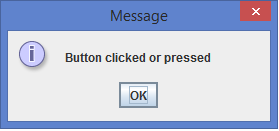
Adds an anonymous ActionListener to the button, and the listener will display a message dialog that says "Button clicked or pressed" once it's triggered.
button.addActionListener(new ActionListener() {
public void actionPerformed(ActionEvent evt) {
        JOptionPane.showMessageDialog(null, ("Button clicked or pressed"));
    }
});
Main Method
The main method launches the application by creating an object of JButtonTest.
public static void main(String args[]) throws Exception {
    new JButtonTest();
}
Example
Below is an example of setting the shortcut key to a JButton using the setMnemonic() method:
import java.awt.*;
import java.awt.event.*;
import javax.swing.*;
public class JButtonTest extends JFrame {
   private JButton button;
   public JButtonTest() {
      setTitle("JButtonTest");
      button = new JButton("Click or press ALT-C");
      button.setMnemonic('C');
      add(button, BorderLayout.CENTER);
      button.addActionListener(new ActionListener() {
         public void actionPerformed(ActionEvent evt) {
            JOptionPane.showMessageDialog(null, ("Button clicked or pressed"));
         }
      });
      setSize(475, 250);
      setDefaultCloseOperation(JFrame.EXIT_ON_CLOSE);
      setLocationRelativeTo(null);
      setVisible(true);
   }
   public static void main(String args[]) throws Exception {
      new JButtonTest();
   }
Output
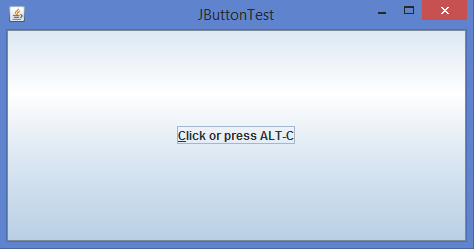
In the above program, if we click or apply the shortcut key (Alt+C from the keyboard) on the JButton, a new popup window can be generated below:

2K+ Views
