
Article Categories
- All Categories
-
 Data Structure
-
 Networking
-
 RDBMS
RDBMS
-
 Operating System
-
 Java
Java
-
 MS Excel
-
 iOS
iOS
-
 HTML
HTML
-
 CSS
CSS
-
 Android
-
 Python
-
 C Programming
-
 C++
C++
-
 C#
C#
-
 MongoDB
-
 MySQL
MySQL
-
 Javascript
-
 PHP
PHP
-
 Economics & Finance
How can I set an ImageView's width and height programmatically in Android?
This example demonstrates about How can I set an ImageView's width and height programmatically in Android
Step 1 − Create a new project in Android Studio, go to File ⇒ New Project and fill all required details to create a new project.
Step 2 − Add the following code to res/layout/activity_main.xml.
<?xml version="1.0" encoding="utf-8"?>
<RelativeLayout xmlns:android="http://schemas.android.com/apk/res/android"
   android:layout_width="match_parent"
   android:id="@+id/rlMain"
   android:layout_height="match_parent"
   android:layout_margin="16dp" />
Step 3 − Add the following code to src/MainActivity.java
package app.com.sample;
import android.os.Bundle;
import android.widget.ImageView;
import android.widget.RelativeLayout;
import androidx.appcompat.app.AppCompatActivity;
public class MainActivity extends AppCompatActivity {
   @Override
   protected void onCreate(Bundle savedInstanceState) {
      super.onCreate(savedInstanceState);
      setContentView(R.layout.activity_main);
      RelativeLayout rlMain = findViewById(R.id.rlMain);
      ImageView imageView = new ImageView(this);
      imageView.setImageResource(R.drawable.ic_launcher_background);
      RelativeLayout.LayoutParams params = new RelativeLayout.LayoutParams(
         RelativeLayout.LayoutParams.MATCH_PARENT,
         RelativeLayout.LayoutParams.MATCH_PARENT
      );
      imageView.setLayoutParams(params);
      rlMain.addView(imageView);
   }
}
Step 4 − Add the following code to androidManifest.xml
<?xml version="1.0" encoding="utf-8"?>
<manifest xmlns:android="http://schemas.android.com/apk/res/android" package="app.com.sample">
   <application
      android:allowBackup="true"
      android:icon="@mipmap/ic_launcher"
      android:label="@string/app_name"
      android:roundIcon="@mipmap/ic_launcher_round"
      android:supportsRtl="true"
      android:theme="@style/AppTheme">
      <activity android:name=".MainActivity">
         <intent-filter>
            <action android:name="android.intent.action.MAIN" />
            <category android:name="android.intent.category.LAUNCHER" />
         </intent-filter>
      </activity>
   </application>
</manifest>
Let's try to run your application. I assume you have connected your actual Android Mobile device with your computer. To run the app from android studio, open one of your project's activity files and click Run  icon from the toolbar. Select your mobile device as an option and then check your mobile device which will display your default screen −
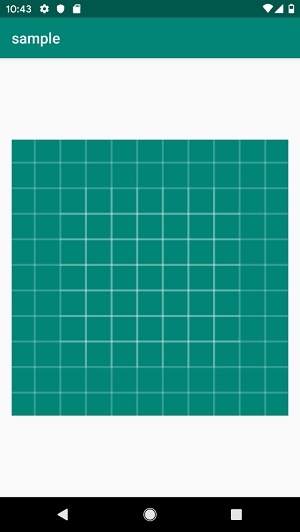
Click here to download the project code.

4K+ Views
