
Article Categories
- All Categories
-
 Data Structure
-
 Networking
-
 RDBMS
RDBMS
-
 Operating System
-
 Java
Java
-
 MS Excel
-
 iOS
iOS
-
 HTML
HTML
-
 CSS
CSS
-
 Android
-
 Python
-
 C Programming
-
 C++
C++
-
 C#
C#
-
 MongoDB
-
 MySQL
MySQL
-
 Javascript
-
 PHP
PHP
-
 Economics & Finance
Change user settings for case sensitivity in SAP 6.0
SAP provides user-specific text settings that allow you to type in uppercase or lowercase according to your preference. To configure these case sensitivity settings, navigate to the ABAP Editor initial screen using T-Code: SE38.
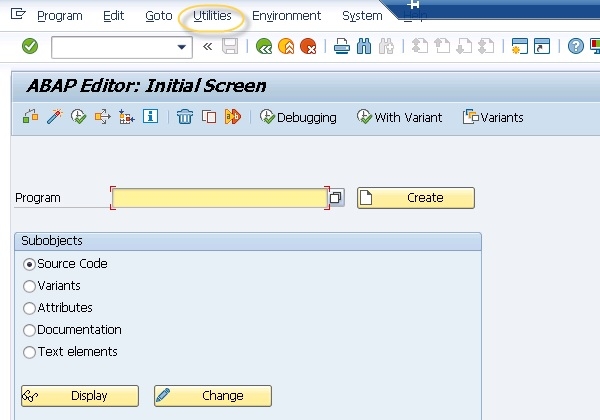
Accessing Case Sensitivity Settings
To modify your case sensitivity preferences, follow these steps ?
1. From the ABAP Editor screen, go to Utilities in the menu bar
2. Select Settings from the Utilities dropdown menu
3. Navigate to the ABAP Editor tab
4. Select the Pretty Printer section
In the Pretty Printer section, you will find several formatting options including case sensitivity settings for keywords, identifiers, and other ABAP elements.
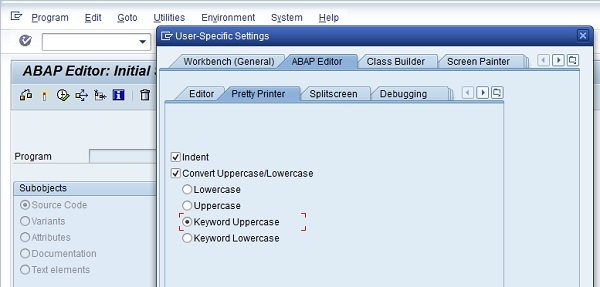
Available Case Options
The Pretty Printer provides multiple case formatting options ?
? Uppercase ? Converts all keywords to uppercase letters
? Lowercase ? Converts all keywords to lowercase letters
? Initial Caps ? Capitalizes the first letter of each keyword
? No Change ? Preserves the original case as typed
These settings apply to ABAP keywords, built-in functions, and system variables. Once configured, the settings will automatically format your code according to your preferences when using the Pretty Printer function.
Conclusion
Configuring case sensitivity in SAP 6.0 through the ABAP Editor's Pretty Printer settings allows you to maintain consistent code formatting according to your personal or organizational standards.

1K+ Views
