
Article Categories
- All Categories
-
 Data Structure
-
 Networking
-
 RDBMS
RDBMS
-
 Operating System
-
 Java
Java
-
 MS Excel
-
 iOS
iOS
-
 HTML
HTML
-
 CSS
CSS
-
 Android
-
 Python
-
 C Programming
-
 C++
C++
-
 C#
C#
-
 MongoDB
-
 MySQL
MySQL
-
 Javascript
-
 PHP
PHP
-
 Economics & Finance
How to block a website in your web browsers (Chrome and Internet Explorer)
To block a website on web browsers like Google Chrome, Firefox, and Internet Explorer in a Windows system, you can modify the system's hosts file. This method works by redirecting website requests to your local machine.
How It Works
The hosts file acts as a local DNS lookup table. When you add an entry like 127.0.0.1 website.com, your system redirects that website to your local machine (127.0.0.1), effectively blocking access.
Step-by-Step Instructions
Step 1: Open Notepad as an administrator by right-clicking on Notepad and selecting Run as Administrator.
Step 2: In Notepad, click File ? Open and navigate to the following path:
C:\Windows\System32\drivers\etc
Step 3: Change the file type from "Text Documents (*.txt)" to "All Files (*.*)" to see the hosts file. Select the hosts file and click Open.
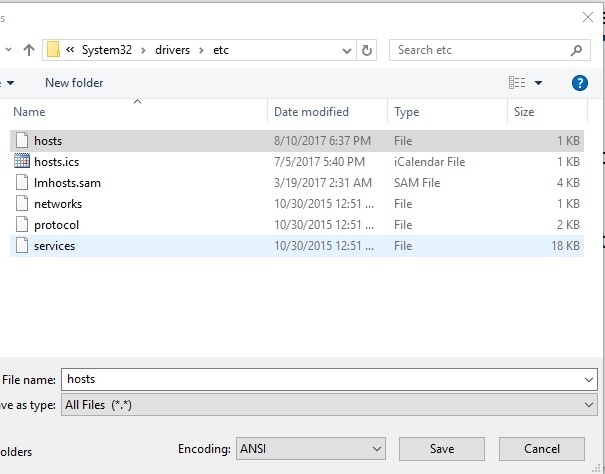
Step 4: The hosts file contains system text. Scroll to the bottom, press Enter to create a new line, and add your blocking entry:
127.0.0.1 www.facebook.com
Type 127.0.0.1, press TAB, then type the website you want to block.
Step 5: Save the file by pressing Ctrl+S or clicking File ? Save.
Example: Blocking Multiple Websites
You can block multiple websites by adding separate lines:
127.0.0.1    www.facebook.com
127.0.0.1    www.twitter.com
127.0.0.1    www.youtube.com
Understanding the Format
| Component | Purpose | Example |
|---|---|---|
127.0.0.1 |
Loopback address (your local machine) | Always use this IP |
| TAB or spaces | Separator between IP and domain | At least one TAB |
| Website domain | The site to block | www.example.com |
Unblocking Websites
To unblock a website, simply:
- Open the hosts file again as administrator
- Delete the line containing the blocked website
- Save the file
Important Notes
- Administrator rights required: You must run Notepad as administrator to modify system files
- Browser restart: Close and reopen your browser after making changes
-
Clear DNS cache: Run
ipconfig /flushdnsin Command Prompt if changes don't take effect - Works system-wide: This blocks the website for all browsers and applications on your computer
Conclusion
Modifying the Windows hosts file is an effective way to block websites across all browsers on your system. Remember to run Notepad as administrator and restart your browser for changes to take effect.

743 Views
